DuoDashboard: The Frankenstein's MagicMirror


Because apparently, looking at one screen like a peasant wasn't an option.
The Problem Nobody Asked Me to Solve
You know what the world was missing? Another way to display Home Assistant dashboards. But wait - there's more! What if we could display them on TWO monitors simultaneously? Revolutionary stuff, I know.
After staring at my finished single monitor MagicMirror like some kind of caveman, I realized I needed to go to infinity and beyond. So instead of doing something watching TV or gaming, I decided to turn my Raspberry Pi into the most overengineered hallway display known to mankind.
Enter: DuoDashboard !
The "Brilliant" Idea
Picture this: I had a perfectly functional MagicMirror setup. Life was good. Then I decided to "upgrade" it because apparently I hate having nice things that just work.
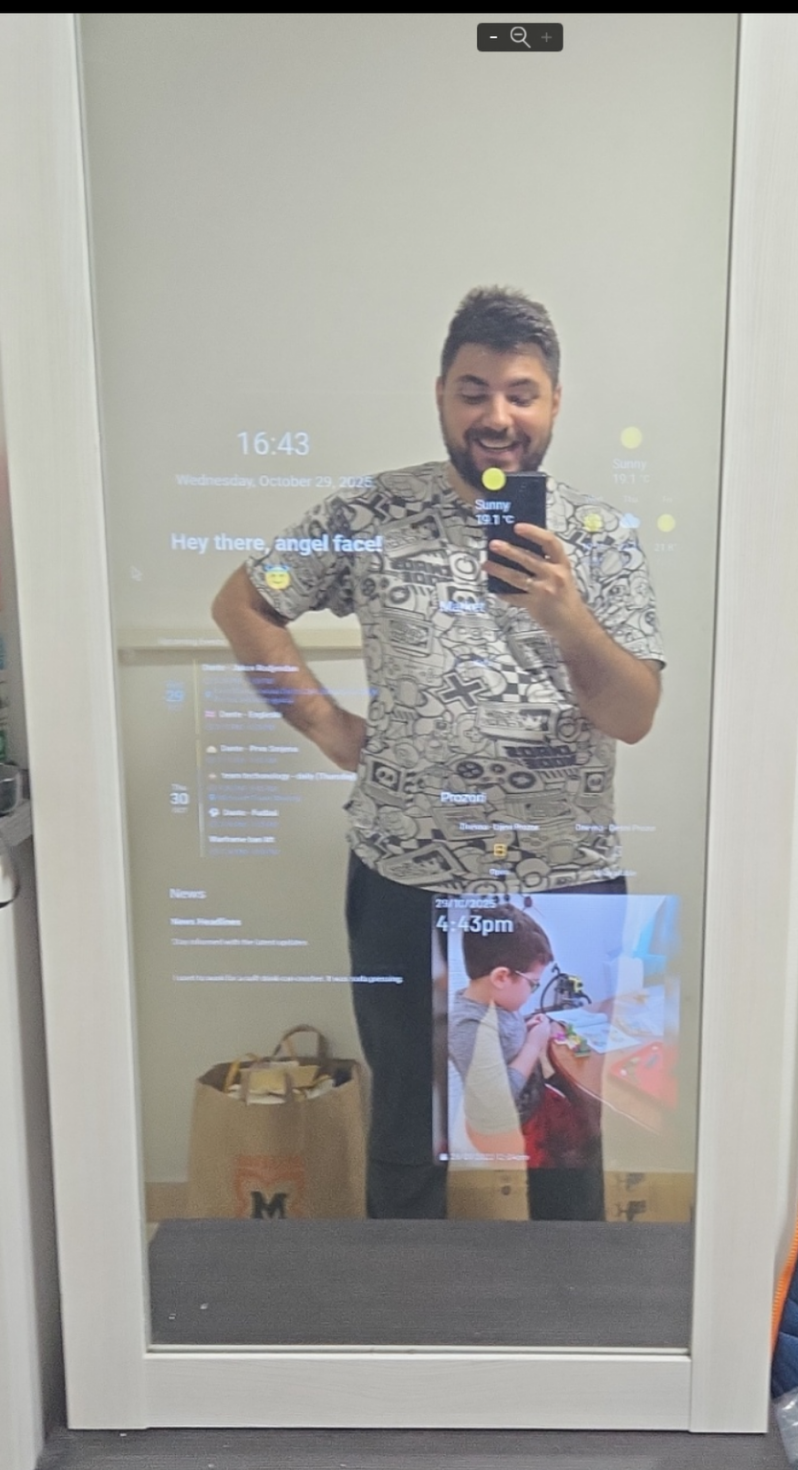
You know, that awkward moment when you realize you've committed to home improvement without actually having a plan? Yeah, that was me.
Standing there, staring at this empty top portion, I had what can only be described as a moment of "genius": "What if I just... put TWO monitors in there instead?"
And I'm aware that MagicMirror is cool and all, and probably supports two displays, but I spent way too much time on my HomeAssistant to just use another solution (and esentially sourcing all the data from HA anyway).
Instead, I thought: "What if I just... opened two Chromium windows?"
Chef's kiss - Pure genius.
Why write custom modules when you can just point browsers at Home Assistant dashboards? It's like choosing the nuclear option for opening a pickle jar, but hey, it works.
And thus, DuoDashboard was born - not from careful planning or market research, but from poor life choices and an inability to admit when I've made a mistake.
The Build Process
Step 1: Accept X11 back into your hearts
Realized that Wayland positioning is about as reliable as my motivation on Monday mornings. X11 it is! (though it still bugs me and I'll probably update the repo for Wayland at some point)
Step 2: Write Scripts Like It's 1999
Created bash scripts that would make a seasoned sysadmin weep. But they work!
Step 3: Autostart Everything
Because manually launching things is for people who have their lives together.
Step 4: GPU Memory Optimization
Cranked that GPU memory to 256MB like I'm running Runes of Magic on this thing.
You can probably go with defaults though but if it's slow try to bump the GPU memory
What This Thing Actually Does
DuoDashboard displays Home Assistant dashboards in fullscreen kiosk mode across two monitors. It's essentially a very expensive digital picture frame that shows your smart home controls instead of vacation photos.
Features include:
- Dual monitor support (shocking, I know)
- Auto-start on boot (because manual labor is overrated)
- Persistent login (sessions survive reboots like cockroaches)
- Kiosk mode (no distractions, just pure dashboard goodness)
- Don't actually use
--kioskbut--start-fullscreen- kiosk doesn't play well with dual screen
- Don't actually use
Use Cases (A.K.A. "Justifying My Life Choices")
Perfect for:
- Hallway displays - Impress guests with your technological prowess
- Kitchen setups - Check the weather while burning breakfast
- Office lobbies - Look important and tech-savvy
- Any situation where you need two screens showing the same company's dashboards
Great for displaying:
- Weather (because windows are apparently obsolete)
- Calendar events (that you'll ignore anyway)
- News headlines (for your daily dose of existential dread)
- Smart home controls (toggle lights like a deity)
- Package tracking (enabling your shopping addiction)
The Code (It Actually Works, Somehow)
The magic happens in these beautifully simple bash scripts:
# This is literally it. I'm not even kidding.

# monitor-1.sh
chromium --noerrdialogs \
--disable-infobars \
--app="https://<your-home-assistant-url>/dashboard-duodashboard/1" \
--start-fullscreen \
--window-position=0,0 \
--user-data-dir=~/.chromium-monitor1

# monitor-2.sh
chromium --noerrdialogs \
--disable-infobars \
--app="https://<your-home-assistant-url>/dashboard-duodashboard/2" \
--start-fullscreen \
--window-position=768,0 \
--user-data-dir=~/.chromium-monitor2
That's it. That's the tweet. No fancy modules, no complex configurations. Just Chromium being Chromium across two monitors.
Thanks to Flemming's post for this one!
The installer script does all the heavy lifting:
- Detects your desktop session (because apparently there are multiple)
- Configures autostart files (in the right location, hopefully)
- Updates GPU memory (for that performance)
- Lets you customize URLs (revolutionary concept)
Installation
git clone https://gitlab.com/stefan-matic/duodashboard-dual-screen.git
cd duodashboard-dual-screen
chmod +x install.sh
./install.sh
sudo reboot
Boom. Two-monitor dashboard nirvana achieved.
Why This Exists
Because I suck at planning and I jump into things without thinking too much.
I pride myself in making the best out of a shitty situation I put myself in.
This project is for people who:
- Didn't plan well - same as me!
- Want dual-monitor Home Assistant displays
- Appreciate the beauty of overengineered solutions
- Don't mind admitting that sometimes "just use a browser" is the answer
- Enjoy projects that work without requiring a PhD in configuration management
Materials
- Raspberry Pi 4 (I used a 4GB but pretty sure 1/2GB can run fine)
- 2x screens (because one screen is for quitters)
- MicroSD card (any size - we're just running chromium)
- Glass (Just normal window glass, any store that sells them can cut it to your frame dimensions)
- Glass mirror foil (I used the one with 30% transparency)
- Esentially you're looking for one way mirror film, something like THIS
- Look up how to apply this beforehand, but glass cleaning solutions are your friends. (Thanks @Lemi!)
- Plywood for your frame
- I use this to plan out my boards: Cutlist Optimizer (thanks @Neven!)
- I re-used my front frame from the previous normal mirror but if you can't you're gonna need to build the frame or buy it according to your backplate and glass dimensions (Just get the bigger frame at places that frame pictures)
- Mounts for monitors/TVs
- I used a hacky solution with my 3D printer that hold it in place nicely but I think you can probably just do
- Here's the MODEL if you want to go the 3D print route - hit me up if you're near me I can probably print you some!
- Electrical equipment like power strip, cable. Wood stuff like screws, plates, hinges, etc.
- Magnets for closing the frame, because why not!

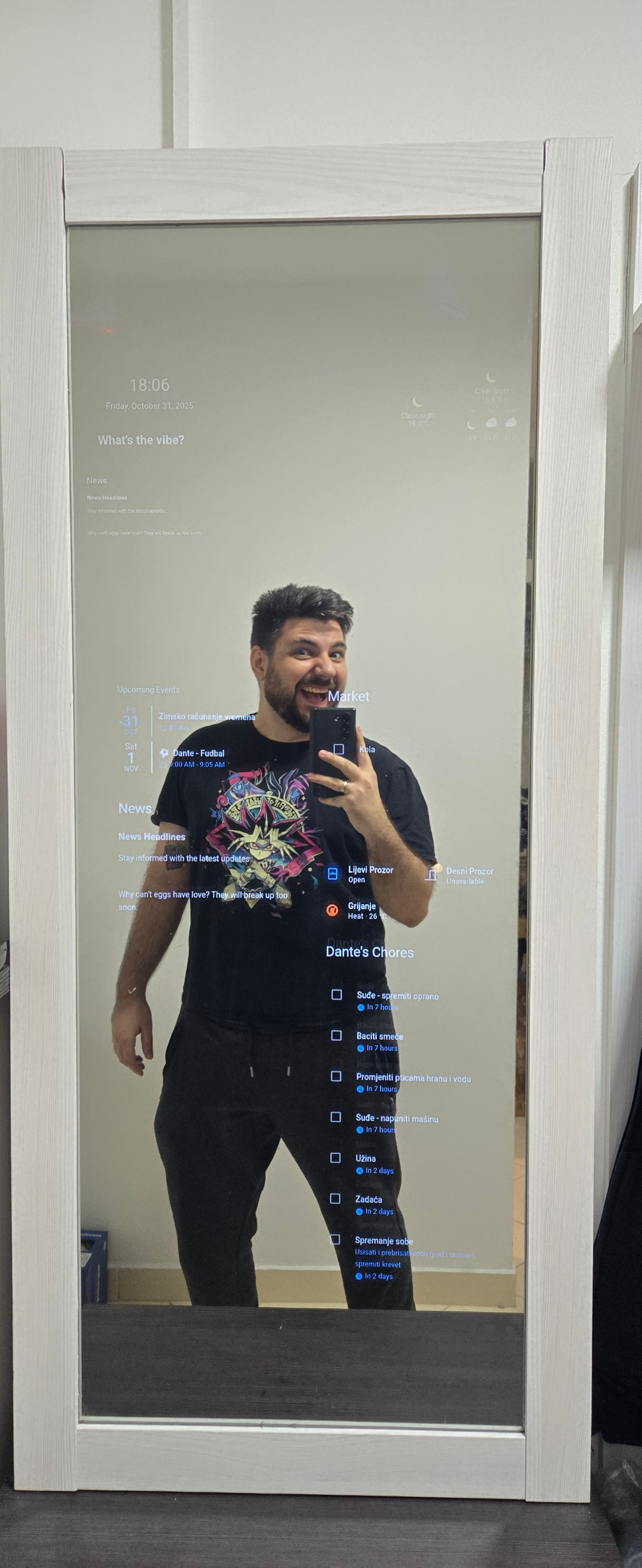
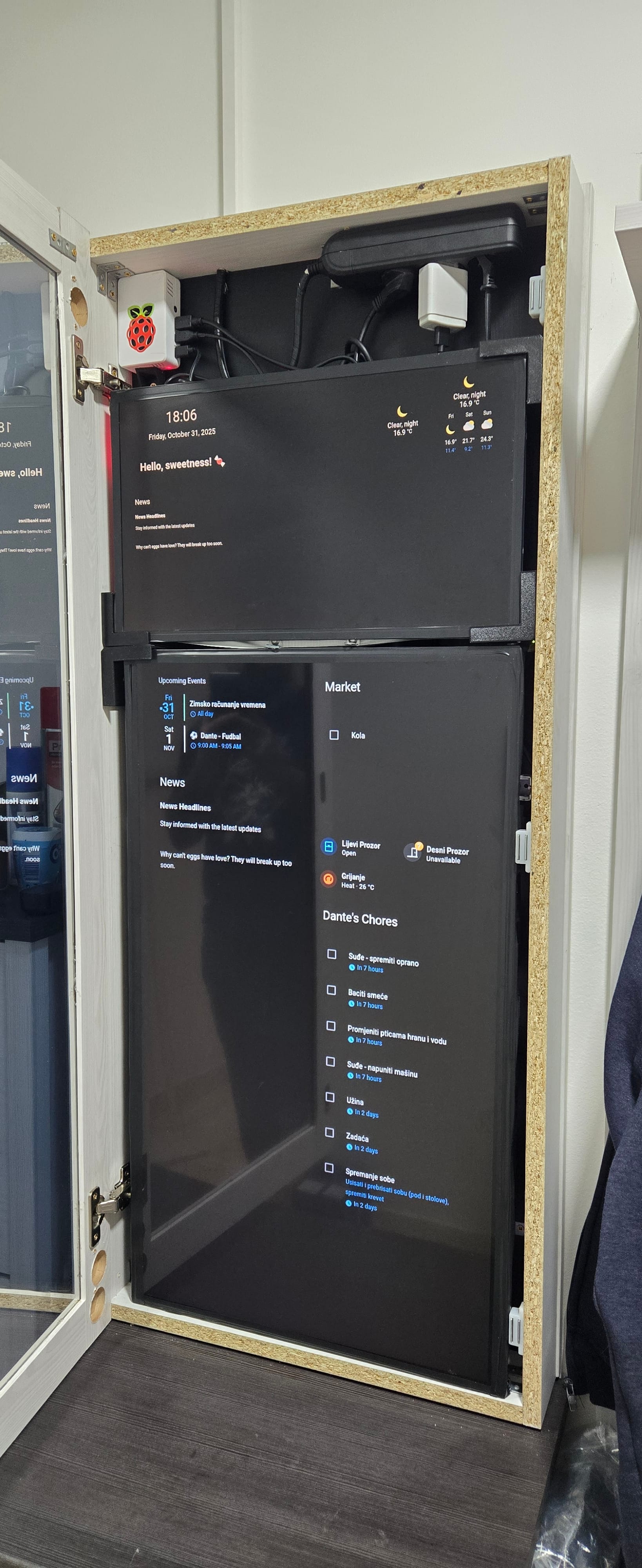
Showcase of the Final Product
The Bottom Line
DuoDashboard is what happens when you take the concept of "it's not stupid if it works" and run with it.
It's a testament to making the best out of a stupid situation you put yourself in.
Is it the most elegant solution? Probably not.
Does it work reliably? Surprisingly, yes.
Will it make you feel like a smart home wizard? Absolutely.
https://github.com/stefan-matic/DuoDashboard
Made with ❤️ and questionable life choices for the Home Assistant and Raspberry Pi communities.
Support: Good luck! (Just kidding - there's actually documentation thanks to Claude)
P.S. - Yes, I could have just bought a single ultrawide monitor. No, I don't want to talk about it.
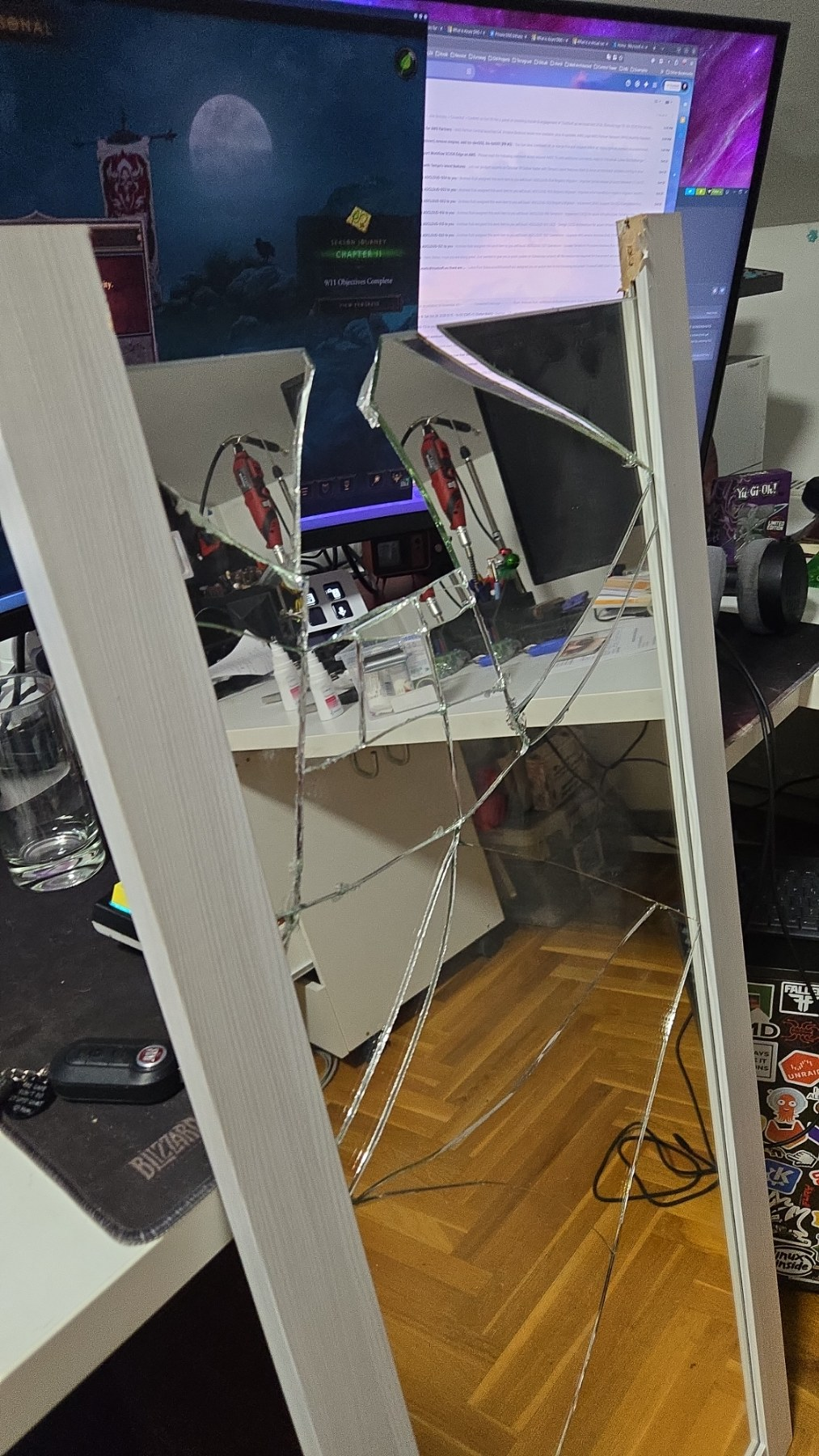
Bonus tip: When working with glass be extra careful. I had a stupid moment where I dropped the glass and tried to "catch it" with my foot